You bought a VPS and it has an IP address like 203.0.113.10. You bought a domain like yourbusiness.com. Right now they are strangers: type the domain into a browser and you will not reach your server, and type the IP and you get a bare address nobody will remember. Pointing a domain to a VPS is the job of introducing them, and it comes down to two DNS records and a short wait.
This guide walks through the whole thing in order: what DNS is doing, the exact records to add, how to prepare the server, how long to wait, how to check that it worked, and how to switch on free HTTPS. Budget ten minutes of work and then, depending on luck, anything from a few minutes to a couple of hours of waiting.
What you need before you start
- A VPS with a public IPv4 address. You will find it in your server details. Every KryoHost VPS ships with a dedicated IPv4 address.
- A domain name and access to its DNS settings. If you do not have one yet, you can register a domain and the DNS comes with it.
- A web server already running on the VPS (Nginx, Apache, or your own app). DNS only tells browsers where to go. Something has to be listening when they arrive. If you are starting from an empty server, the WordPress on a VPS guide sets one up from scratch.
What DNS actually does (in 60 seconds)
Computers find each other by number, not by name. DNS, the Domain Name System, is the directory that turns yourbusiness.com into 203.0.113.10. When a visitor types your domain, their device asks a resolver, the resolver asks the domain's nameservers, and the nameservers answer with whatever records you have set. Change a record and, once the old answer expires from caches around the world, everyone is sent to the new address.
That last part is why DNS changes are not instant, and it is the source of almost every "I changed it and nothing happened" moment. We will come back to it.
The records you need
For a website on a VPS you only need two records. Everything else is optional.
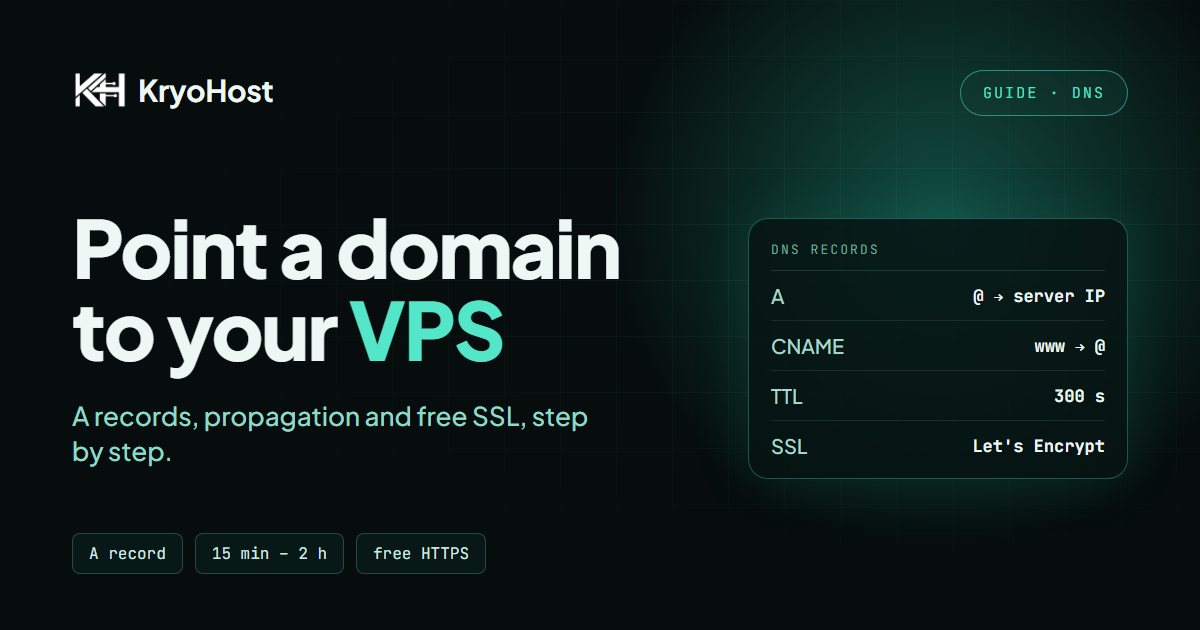
| Type | Name | Value | What it does |
|---|
| A | @ | Your VPS IPv4 address | Points the bare domain (yourbusiness.com) at the server |
| CNAME | www | yourbusiness.com | Makes www.yourbusiness.com follow the bare domain |
The @ symbol is DNS shorthand for "the domain itself". Some control panels show it as a blank name or as the full domain, but they all mean the same thing.
Why the CNAME for www?
A CNAME says "this name is an alias for that one". Pointing www at the bare domain means that if your server's IP ever changes, you edit one A record instead of two. If you prefer, a second A record for www with the same IP works just as well.
A and AAAA: do you need IPv6?
An A record holds an IPv4 address and an AAAA record holds an IPv6 address. If your VPS has only IPv4, add only the A record. The one thing to avoid is an AAAA record that points somewhere else, such as a leftover from your old host: browsers prefer IPv6 when they can, so a stale AAAA record sends some visitors to the wrong server while everyone else sees the right one.
Step 1: Lower the TTL (only if you are moving an existing site)
Every DNS record carries a TTL, the number of seconds a resolver is allowed to remember the answer. If the old record has a TTL of a day, some visitors will keep going to the old server for up to a day after you change it.
If you are moving a live website, lower the TTL on the existing records to 300 (five minutes) a day before you switch, then do the real change. If this is a brand-new domain with nothing on it, skip this step: there is nothing cached to wait out.
Step 2: Add the records
Log in to wherever the domain's DNS is managed. That is your registrar's DNS page, unless you have pointed the domain at nameservers somewhere else. If you registered with us, the free DNS editor in your account supports A, AAAA, CNAME, MX, TXT, SRV, CAA and ALIAS records.
- Open the DNS records for the domain.
- Delete any existing A record for
@ that points to a parking page, and any existing www record.
- Add an A record: name
@, value your VPS IPv4 address, TTL 300.
- Add a CNAME record: name
www, value your bare domain, TTL 300.
- Save.
Do not touch the MX or TXT records unless you know what they are for. Those carry your email, and removing them is the quickest way to stop receiving it.
Check which nameservers the domain really uses
If you add records and nothing ever changes, this is the usual reason. A domain can only have one set of active nameservers. If it is set to use, say, a hosting company's nameservers, the DNS page at your registrar is ignored and the records you must edit live at that hosting company. Look at the domain's NS records or its nameserver setting to find where the DNS is really managed.
Step 3: Make the server answer to the domain
DNS gets the visitor to your server. The server then has to know which site to show. With Nginx, that is the server_name in your site's configuration:
server {
    listen 80;
    server_name yourbusiness.com www.yourbusiness.com;
    root /var/www/yourbusiness;
    index index.html index.php;
}
Test the file and reload Nginx:
sudo nginx -t
sudo systemctl reload nginx
If a firewall is running, make sure web traffic is allowed. With UFW:
sudo ufw allow 80
sudo ufw allow 443
Opening 443 now saves a confusing failure in step 6.
Step 4: Wait for DNS to propagate
"Propagation" is just caches expiring. For a new domain it normally takes 15 minutes to two hours, and in unusual cases up to 48 hours. There is no button that speeds it up, and nobody, including your registrar, can make the whole internet forget faster. What you can control is the TTL, which is why step 1 matters for existing sites.
You do not have to wait blindly. The next step shows you how to see exactly what each resolver currently believes.
Step 5: Check that it worked
From a terminal (macOS, Linux, or Windows PowerShell), ask for the domain's A record:
nslookup yourbusiness.com
On macOS and Linux, dig gives a cleaner answer:
dig +short yourbusiness.com A
dig +short www.yourbusiness.com
You are looking for your VPS IP address. If you see the old IP, the cache has not expired yet. If you see nothing at all, the record is missing or the domain is using different nameservers than you think.
To rule out your own computer's cache, ask a public resolver directly:
dig +short yourbusiness.com @1.1.1.1
dig +short yourbusiness.com @8.8.8.8
Different answers from different resolvers simply mean propagation is still in progress.
Test the site before DNS finishes
To open the site on the VPS before the world has caught up, tell your own computer where the domain lives by adding a line to its hosts file (/etc/hosts on macOS and Linux, C:\Windows\System32\drivers\etc\hosts on Windows):
203.0.113.10 yourbusiness.com www.yourbusiness.com
Now your browser goes straight to the server regardless of DNS. Remove that line when you are done, or you will be confused about it a month from now.
Step 6: Switch on free HTTPS
Once the domain resolves to your server, get a free certificate from Let's Encrypt. It needs the DNS to be working first, because it proves you control the domain by making a request to it, and that is the second reason to check step 5 before this one.
On Ubuntu with Nginx:
sudo apt install certbot python3-certbot-nginx -y
sudo certbot --nginx -d yourbusiness.com -d www.yourbusiness.com
Certbot asks for an email address, obtains the certificate, edits the Nginx configuration to use it, and offers to redirect all HTTP traffic to HTTPS. Say yes. It also installs a timer that renews the certificate automatically about every 60 days. Confirm that renewal works with a dry run:
sudo certbot renew --dry-run
Open https://yourbusiness.com. The padlock should be there. If you are going on to set up the application itself, the WordPress on a VPS guide picks up from this point.
Common problems and what they mean
The domain still shows the old site or a parking page
Almost always cached DNS or the wrong nameservers. Run the dig checks from step 5 against @1.1.1.1. If the public resolver gives the new IP and your browser still shows the old site, clear the browser cache or try a private window.
"This site can't be reached" or a connection timeout
DNS is probably fine and the server is not answering. Check that the web server is running, that it listens on port 80, and that the firewall (including any firewall in your provider's control panel) allows ports 80 and 443.
The default Nginx or Apache page appears instead of your site
DNS worked. The server just does not have a site configured for that domain name. Check server_name in step 3 and reload the web server.
www works but the bare domain does not (or the reverse)
One of the two records is missing. Add the missing A or CNAME record. Also make sure both names are included when you request the certificate, or one of them will show a certificate warning.
Certbot says it could not verify the domain
The domain does not yet resolve to this server, or port 80 is blocked. Re-run the dig checks, confirm the firewall, and try again.
Email stopped working after the change
You probably replaced all the records or switched nameservers without copying the MX and TXT records over. Restore them in the new DNS zone. The A record for the website does not affect email by itself.
Using Cloudflare or another proxy in front
If the domain uses a proxying DNS service, the public IP you see is the proxy's, not your VPS. That is normal. Point the record at your VPS inside that service, and make sure its SSL mode matches the certificate you installed on the server, otherwise you get redirect loops.
Frequently asked questions
How long does it take to point a domain to a VPS?
The editing takes about five minutes. Propagation typically takes 15 minutes to two hours for a new domain, and can take up to 48 hours in unusual cases. Lowering the TTL to 300 seconds a day beforehand makes a move between servers much quicker.
Do I need to buy the domain from the same company as the VPS?
No. A domain and a server are separate services connected by DNS records you control. Registering with one company and hosting with another works fine. The only argument for keeping them together is convenience: one invoice and one support conversation when something breaks.
Should I use an A record or a CNAME?
Use an A record for the bare domain, because it points to an IP address, and a CNAME for www, because it points to another name. A CNAME is not allowed on the bare domain in standard DNS.
Can I point one domain to several VPS servers?
You can add more than one A record for the same name, and resolvers will spread visitors between the addresses. That is a crude form of load balancing, with no health checking, so if one server goes down some visitors still get sent to it. For anything serious, put a proper load balancer or CDN in front.
Can I point a subdomain such as app.yourbusiness.com to a different server?
Yes. Add an A record with the name app and the other server's IP address. Each subdomain is independent, so your main site and your app can live on separate machines.
Do I have to pay for SSL?
No. Let's Encrypt certificates are free and renew automatically. You only need a paid certificate for specific validation requirements that most websites do not have.
My IP address changed. What do I do?
Edit the A record to the new IP and wait for the TTL to expire. That is why a short TTL of 300 seconds is a sensible setting for a server you may move.
Ready to connect your domain?
If you need a server, choose a plan on the VPS hosting page, or pick the location nearest your visitors, such as the Karachi VPS. If you need the domain too, you can register one with free DNS and WHOIS privacy. And if you get stuck on a record that will not behave, tell us what you see, including the output of the dig command, and we will tell you what it means.

 Germany
 Netherlands
 United Kingdom
 France
 Poland
 Spain
Spain Sweden
 Bulgaria
 Greece
 Romania
 Turkey
 Russia
 Pakistan
 India
India Singapore
 United Arab Emirates
 Saudi Arabia
 Japan
Japan South Korea
 China
China Indonesia
 Malaysia
 Thailand
 Vietnam
 Philippines
 Bangladesh
 Nepal
Nepal Israel
 Qatar
Qatar Kuwait
 Bahrain
 Oman
Oman Iraq
Iraq Cambodia
 Myanmar
 United States
 Canada
 Mexico
 Argentina
 Brazil
 Chile
Chile Colombia
 Peru
Peru Ecuador
 South Africa
 Egypt
Egypt Australia